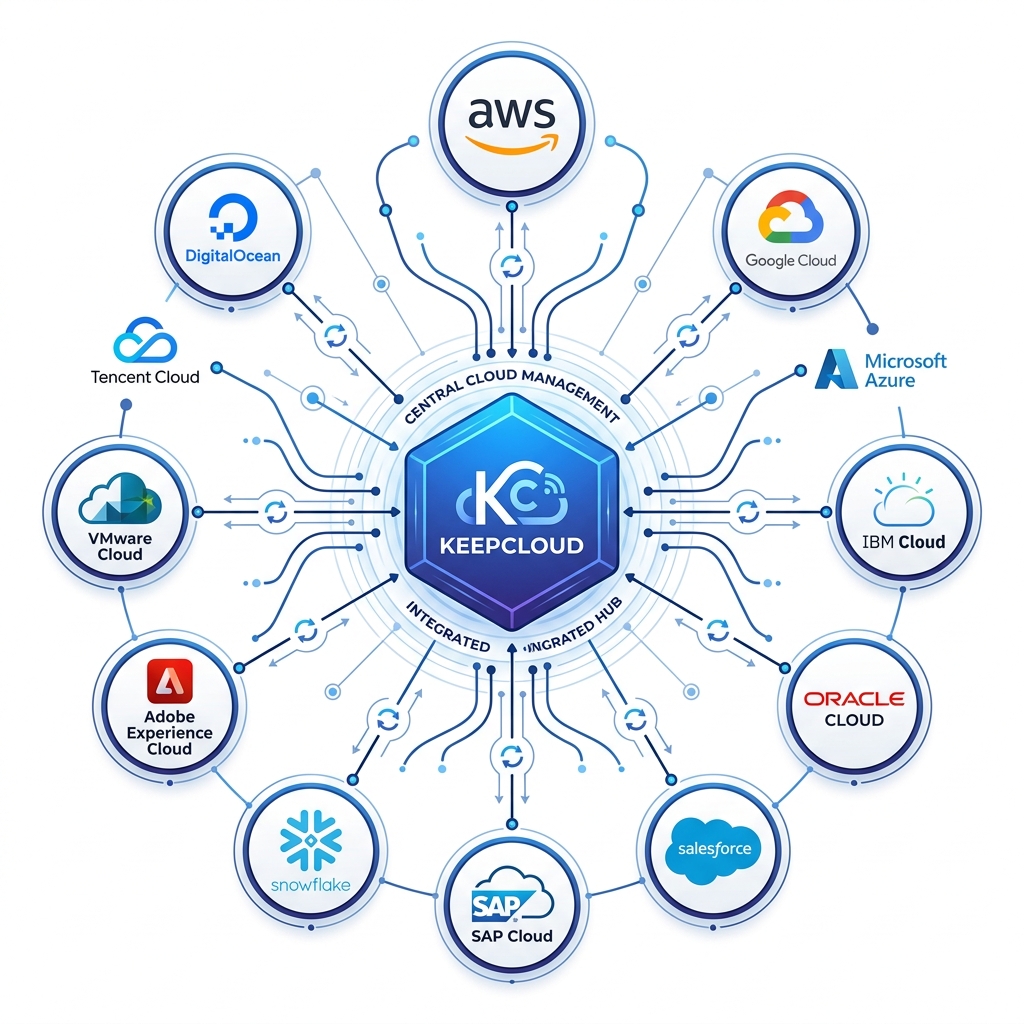
KeepCloud uses each provider's native change-tracking mechanism — Google's Changes API, Dropbox's cursor system, and OneDrive's delta API — to sync only what changed since your last session, keeping your unified vault fresh without full re-downloads.
Showing a unified view of three different cloud providers sounds simple. In practice, it requires solving a genuinely hard problem: how do you keep the file list up to date across three services with different APIs, different rate limits, different metadata formats, and different change-notification mechanisms — without making users wait, without burning through API quotas, and without showing stale data?
KeepCloud's answer is delta sync.
What is delta sync?
A delta sync fetches only the changes since the last sync, rather than downloading your entire file list from scratch every time. Each cloud provider offers its own change-tracking mechanism:
Google Drive uses a Changes API that tracks every modification to your Drive since a given checkpoint. KeepCloud records that checkpoint at the end of a full sync, and on subsequent requests uses it to fetch only the files added, modified, or deleted since then — which for most users is a handful of items, not tens of thousands.
Dropbox uses a cursor system. Each list operation returns a cursor — a bookmark representing the state of your Dropbox at that moment. KeepCloud saves the cursor, and future syncs use it to continue from exactly where the last sync ended, fetching only new entries.
OneDrive uses a deltaLink — a special URL returned at the end of a full drive listing that, when called again later, returns only the changes since it was created. KeepCloud stores this deltaLink and reuses it for incremental syncs.
"For most users, a delta sync completes in under two seconds. A full sync of 10,000 files might take 30 seconds. Delta sync means you almost never wait."
The first sync: full index
When you connect a new cloud account to KeepCloud, a full sync runs automatically. KeepCloud paginates through your entire file list — up to 1,000 files per page for Google Drive, 2,000 for Dropbox, 999 for OneDrive — and normalizes every file's metadata into a consistent format.
This normalization is important: Google uses MIME types and creation timestamps in one format, Dropbox uses path-based IDs and modification dates in another, OneDrive uses its own folder hierarchy notation. KeepCloud maps all three into a unified schema so your file browser can show them all in a single, consistent view.
Full syncs use progressive loading — as each page of files arrives, it's immediately made available in your browser. You start seeing files within seconds, not after the entire sync is complete.
Caching and freshness
Once synced, your file list is cached in memory for up to 40 hours. When you return to KeepCloud within that window, your file list appears instantly from cache — no waiting for a full re-fetch. Behind the scenes, KeepCloud quietly starts an incremental delta sync to update the cache with any changes you've made in your cloud apps since your last visit.
This is the "stale-while-revalidate" pattern: you get instant results from the cache while a background update silently brings it current. By the time you've finished loading the page, the update has usually completed.
If you need to force a fresh sync — for example, after uploading something important directly in Google Drive and wanting it to appear immediately — a manual refresh triggers a new delta sync against all your connected accounts simultaneously.
How multiple accounts are handled
KeepCloud supports multiple accounts per provider. If you have two Google Drive accounts, both are synced in parallel. Their files appear together in your unified view, with a subtle provider and account indicator on each file so you always know which account holds the original.
Each account's sync state — its delta token or cursor — is tracked independently. This means one account can be mid-sync while another is serving from cache, without any mixing or blocking between them.
What KeepCloud stores during sync
KeepCloud stores file metadata only — names, sizes, types, modification dates, parent folder IDs, and provider-specific view links. It does not download or store file contents during sync. The actual bytes of your files remain exclusively in Google Drive, OneDrive, and Dropbox. When you preview or download a file through KeepCloud, it is fetched on-demand from the original provider and streamed directly to your browser.
Security during sync
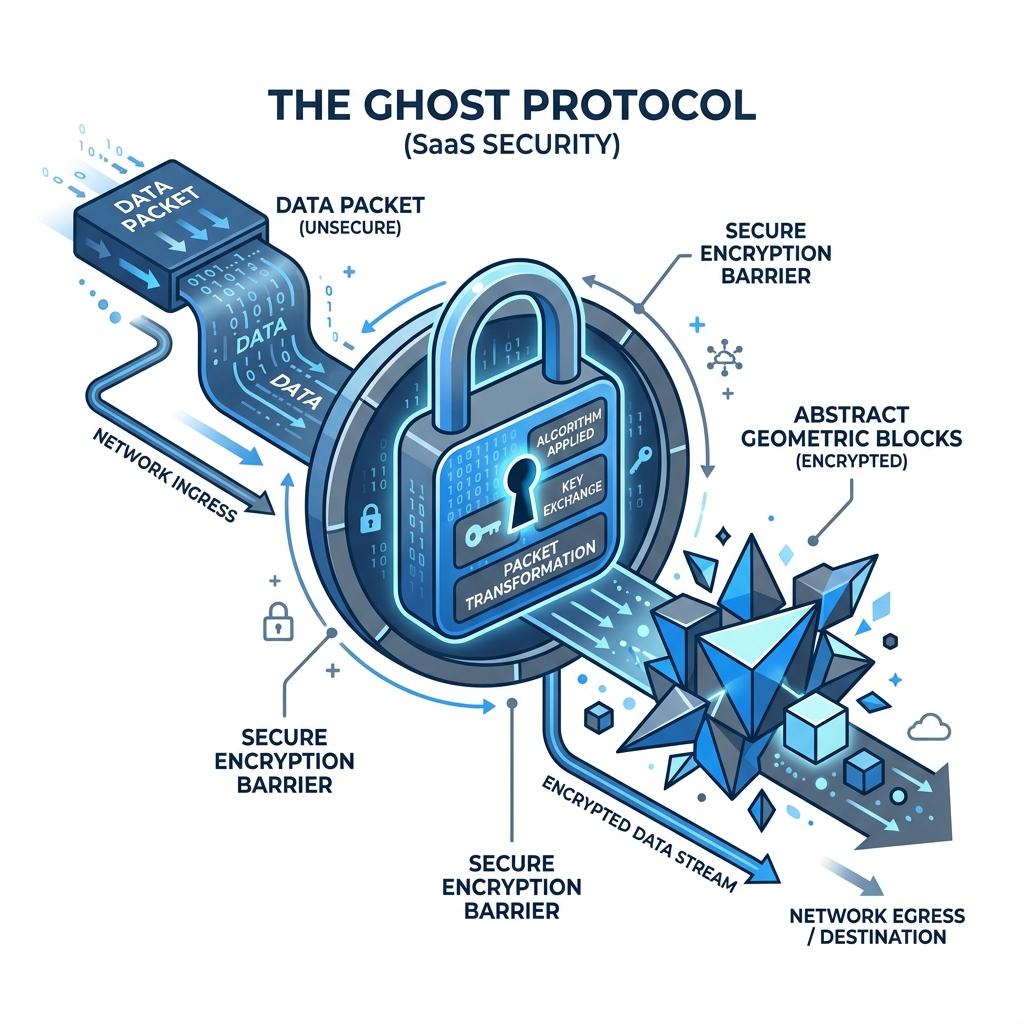
Every API call made during sync uses your encrypted, stored cloud credential — decrypted in memory only for the duration of the API call. The decrypted credential is never written to disk or logged. If a credential expires mid-sync (which can happen with short-lived OAuth access tokens), KeepCloud automatically uses the stored refresh credential to obtain a new one and resumes the sync without interruption.
Figure 1 — Delta sync fetches only the difference since last session, not your entire cloud every time.